






Now that you have downloaded your VCC and the Airwallex app to your phone, you can use it to pay for what you need during your engagement. Rather than waiting until the month's end to submit an expense report and reclaim your month, this will save you time and mean you do not have to use your own cash.
Here is a step-by-step guide on how to record an expense in the Revolut Business app:
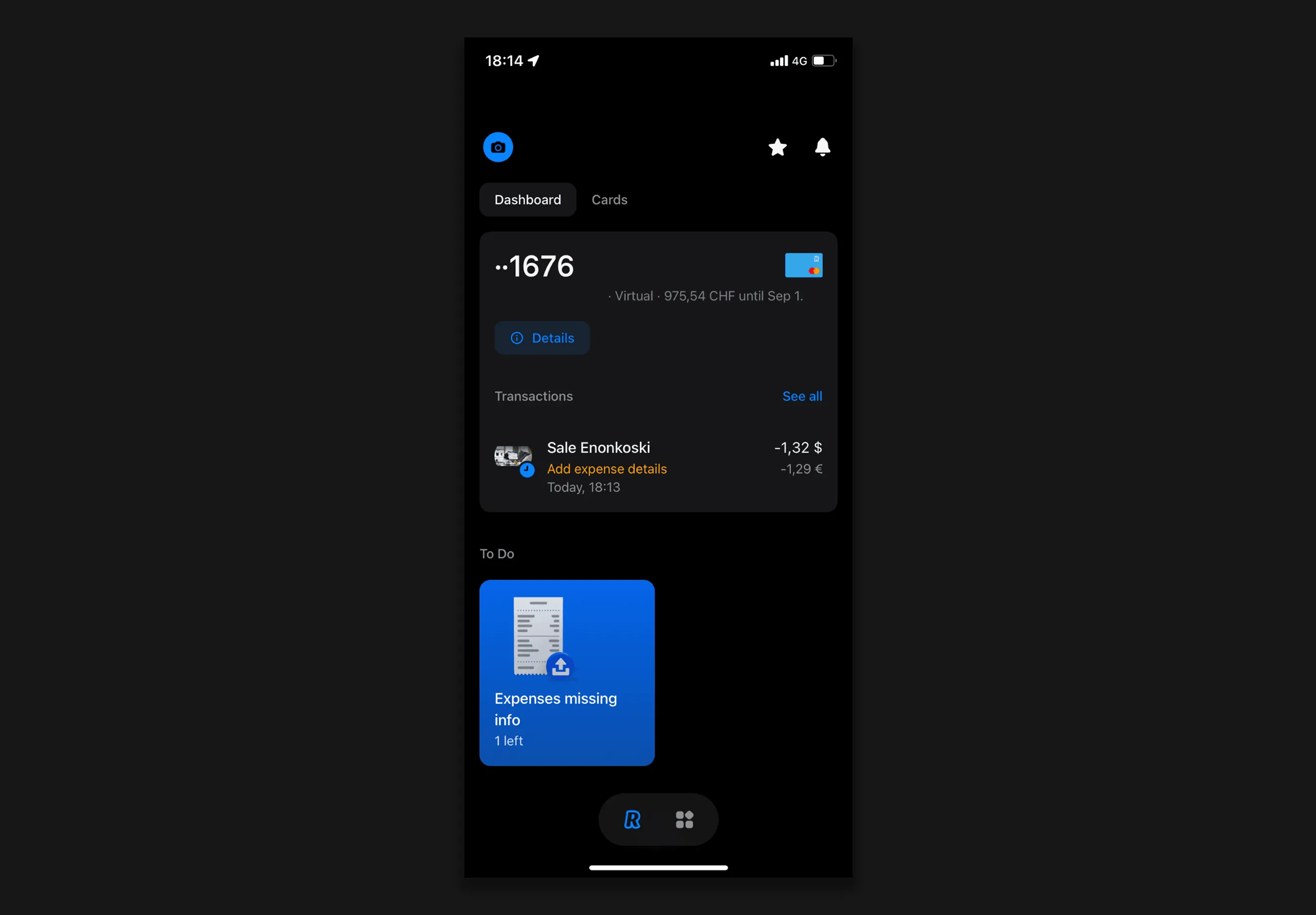
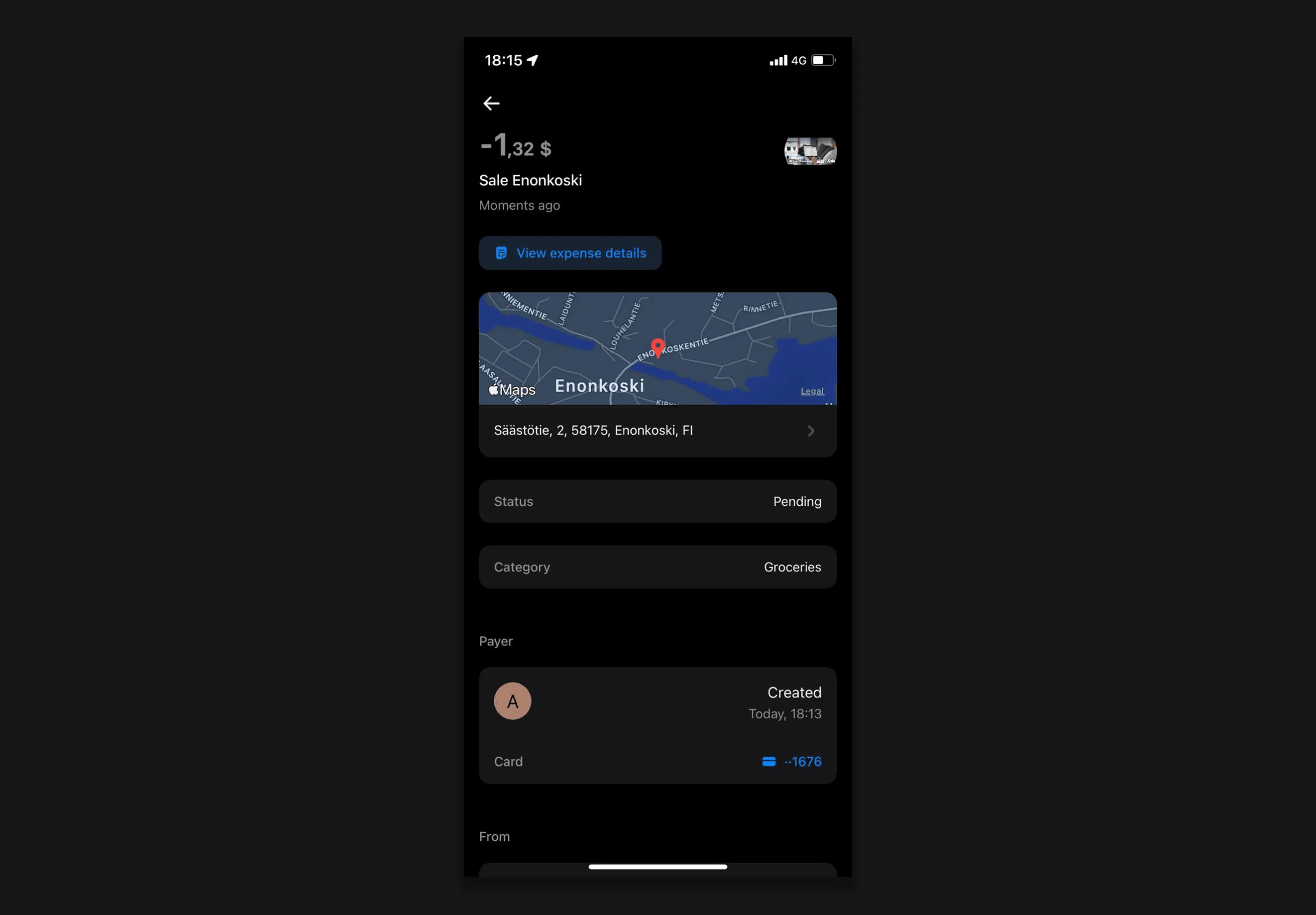
In the 'Dashboard' area where you select your card, you will see recent expenses still require you to add further details.
In the 'Expense details' section, you must complete the following four fields: documents, category, description, and accounting labels.
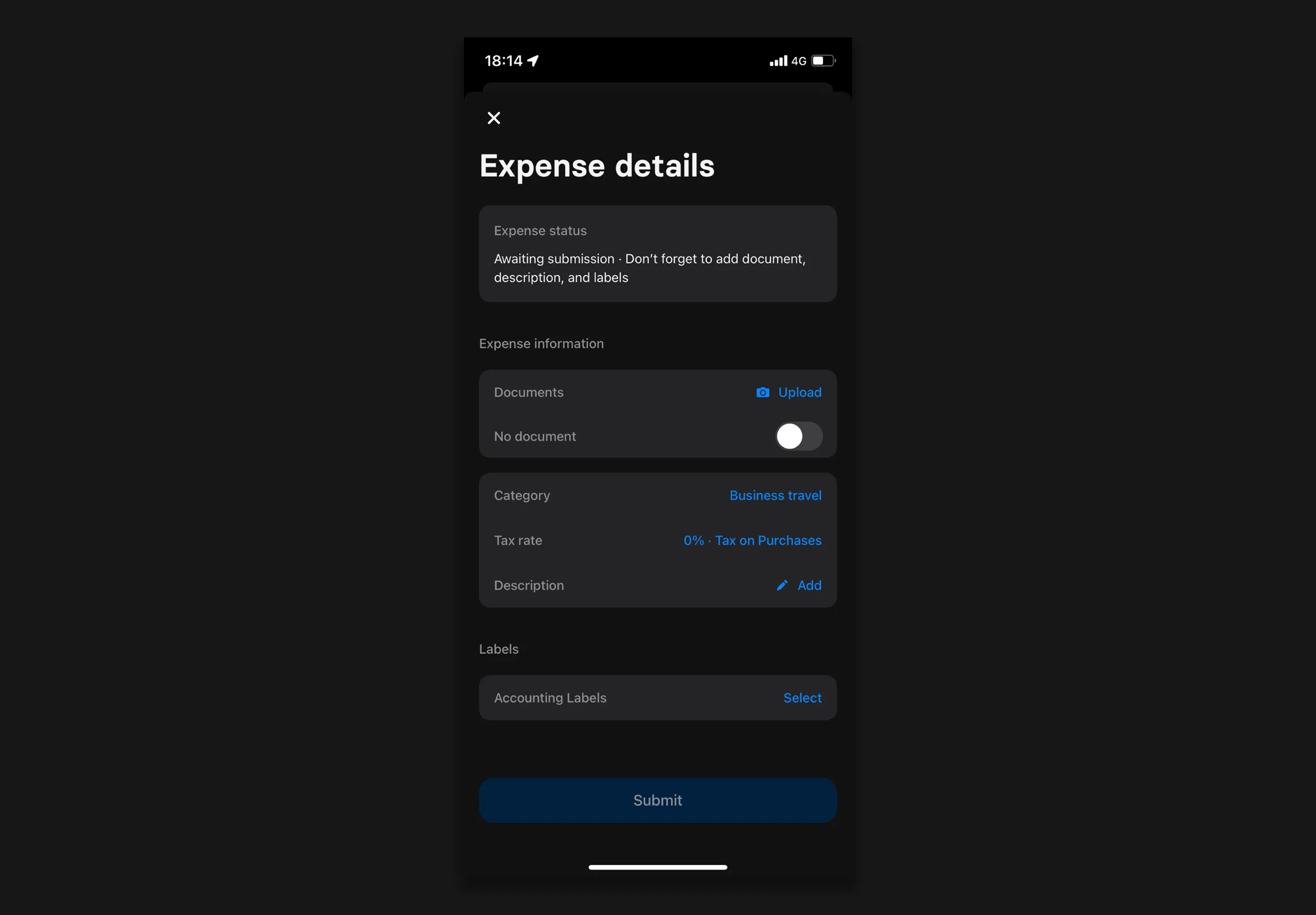
For Documents, take a clear photograph of the receipt or download the PDF invoice (for airline tickets, for example). Once this is done, press 'Upload' in the app and add the relevant document.
If no document exists (for example, if the receipt cannot be printed), a reason must be supplied in the description and the 'No Document' switch pressed. The finance team will then review this expense to determine what course of action is taken.
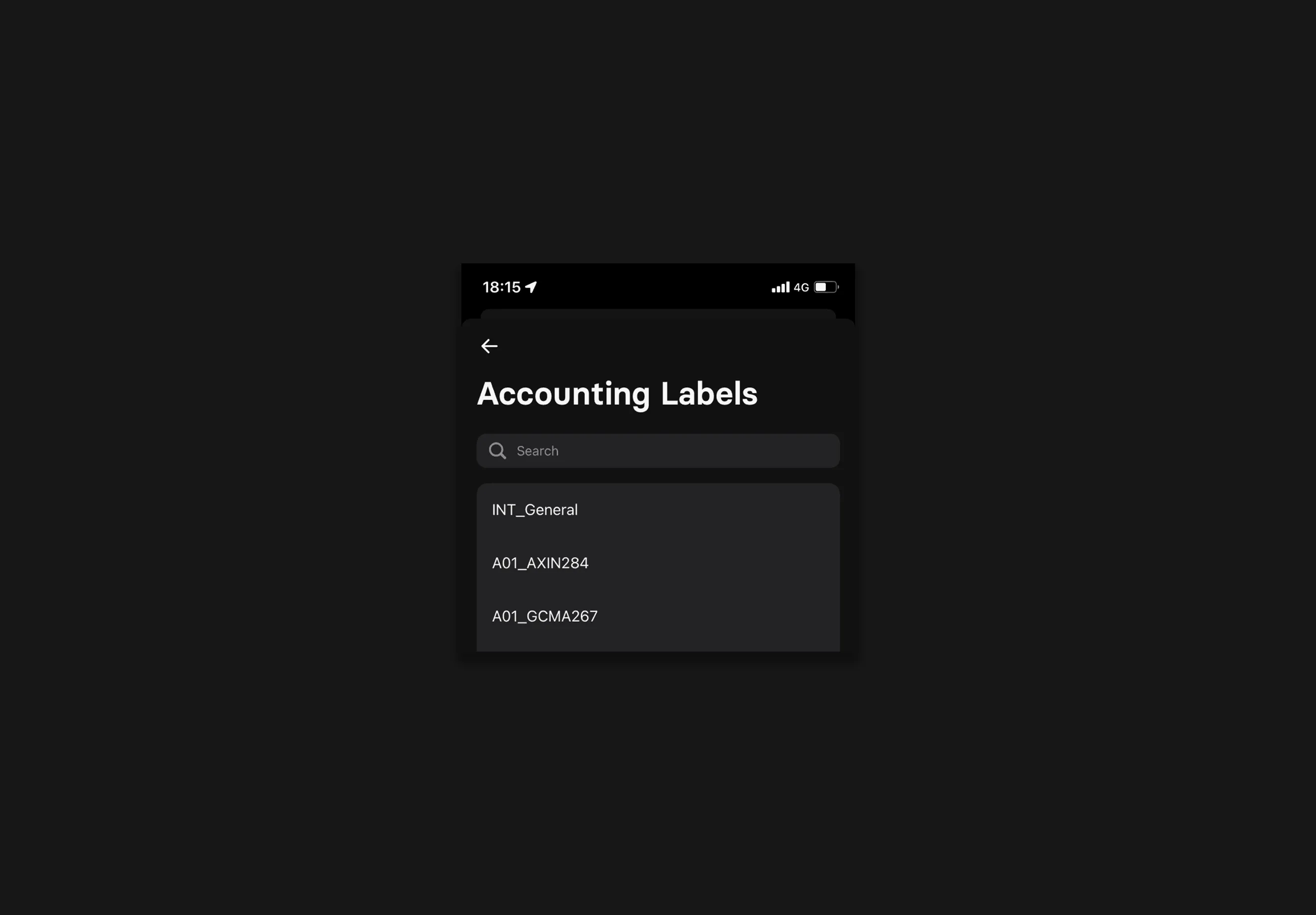
Accounting label should ALWAYS be the project code detailed in your onboarding documentation. Please contact support@hyphen.group if you are unsure or cannot find this code.
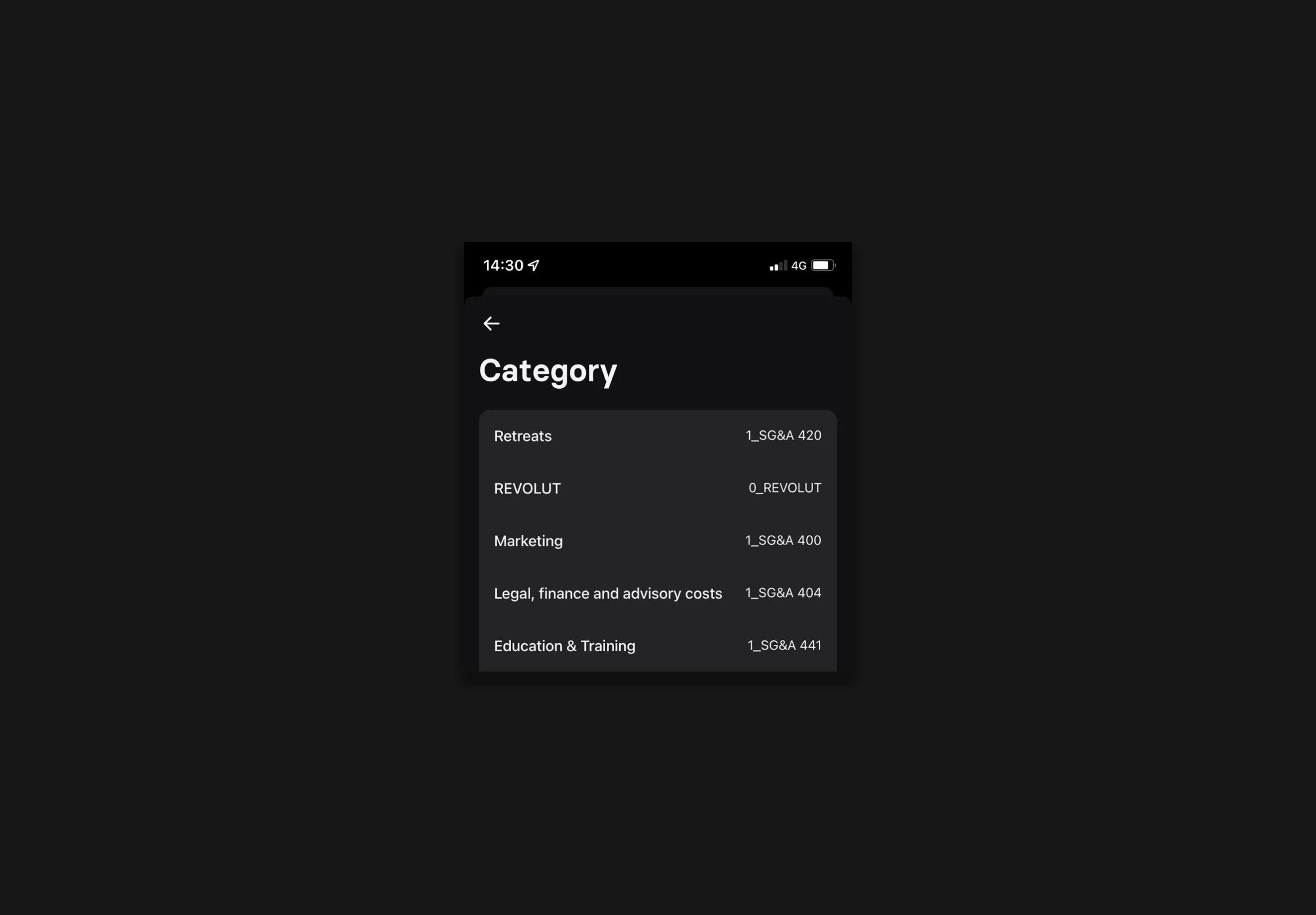
The category should ALWAYS be "REVOLUT".
When filling out the description, please be as detailed as possible so that we can be sure that the payment compiles with the relevant expense policy. A good example would be "Work-related travel expenses - flight to client site".
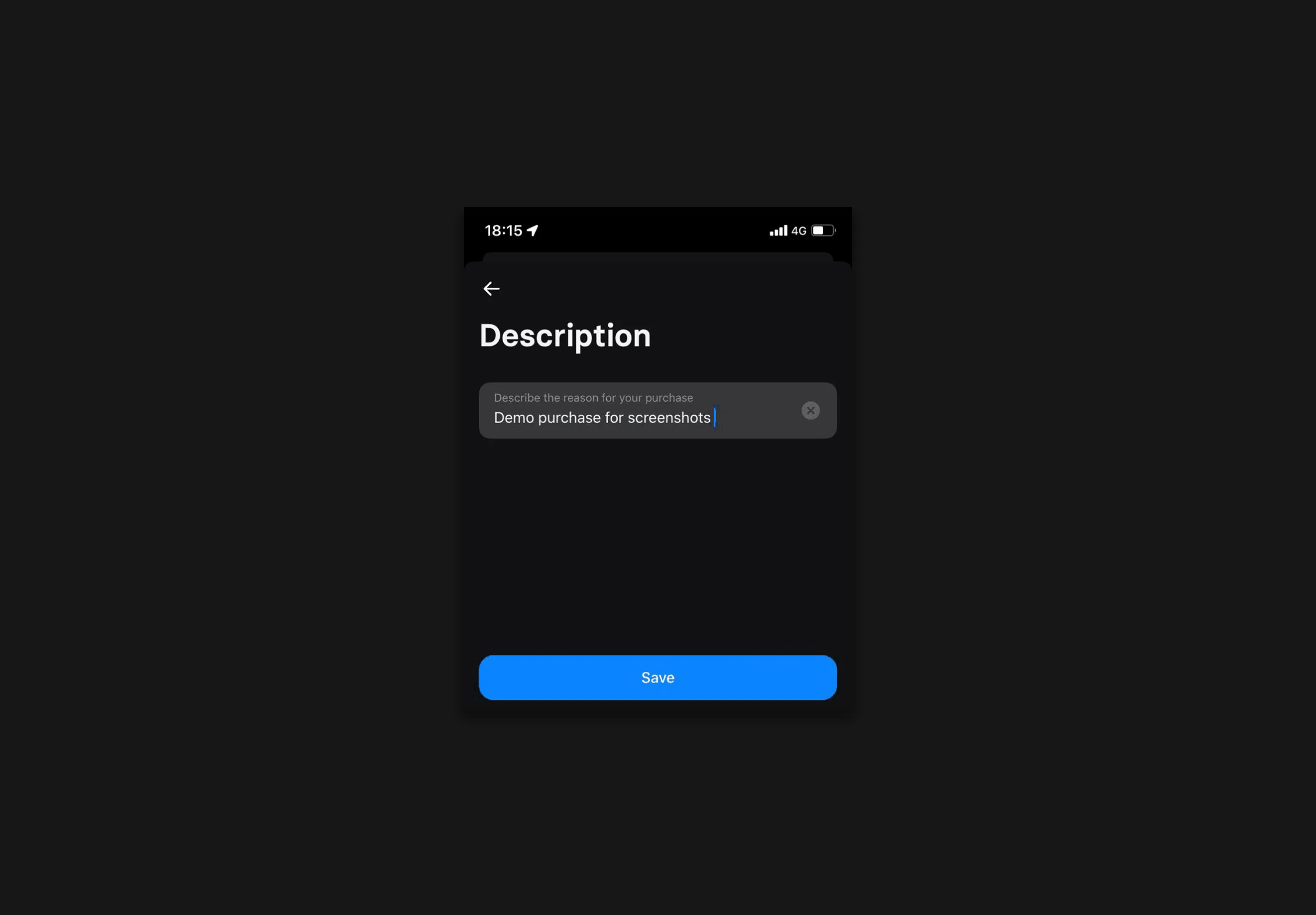
Once all elements are completed, the expense can be submitted.
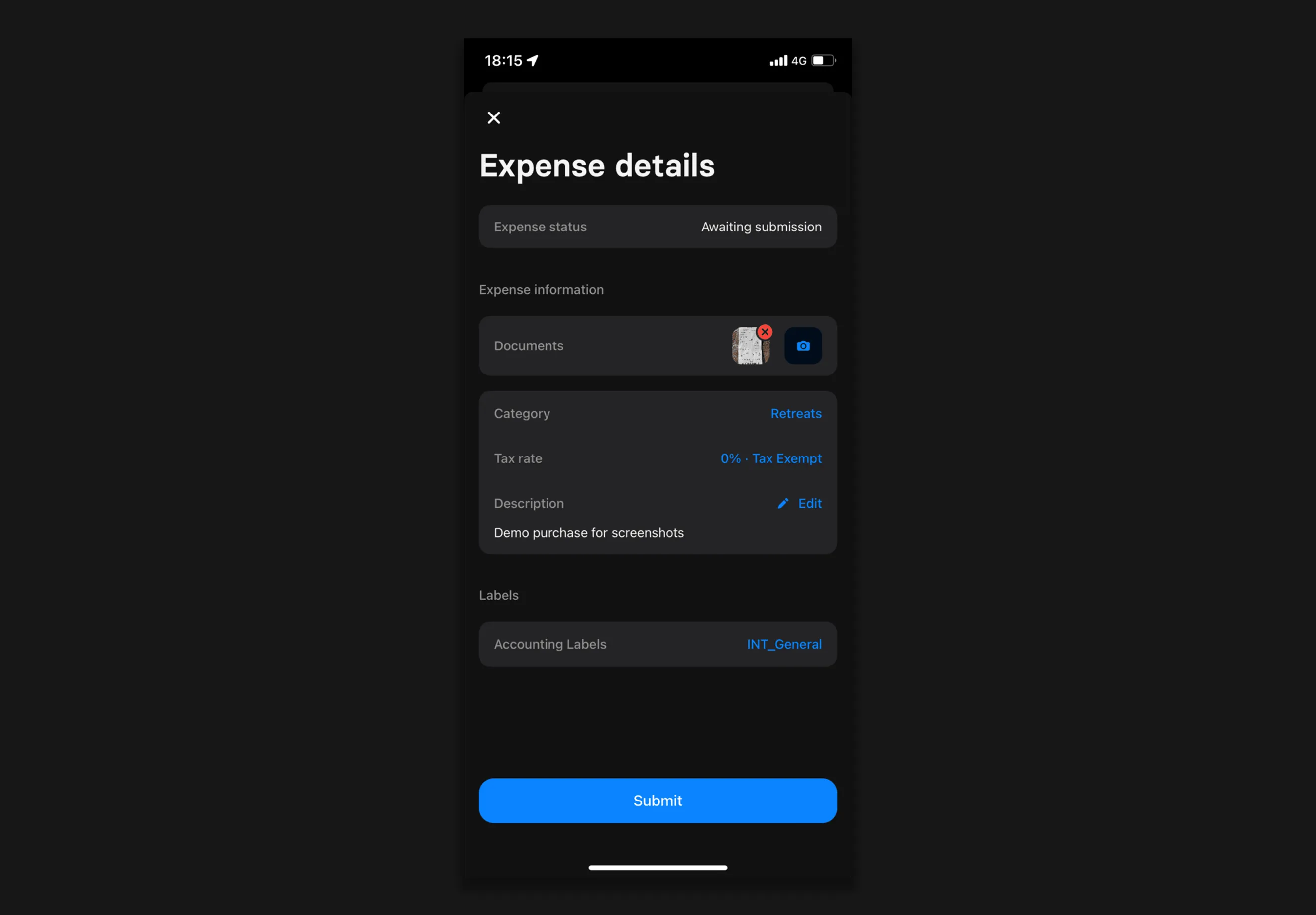
The expense has now been submitted to our Finance Team for approval and no further action is required.
Accidental Purchases
In the event that you make a personal purchase using the VCC, you will have to submit the expense for review. You will then be required to transfer the same value to Hyphen's Airwallex account.
To resolve an accidental purchase, first select the expense in the list:
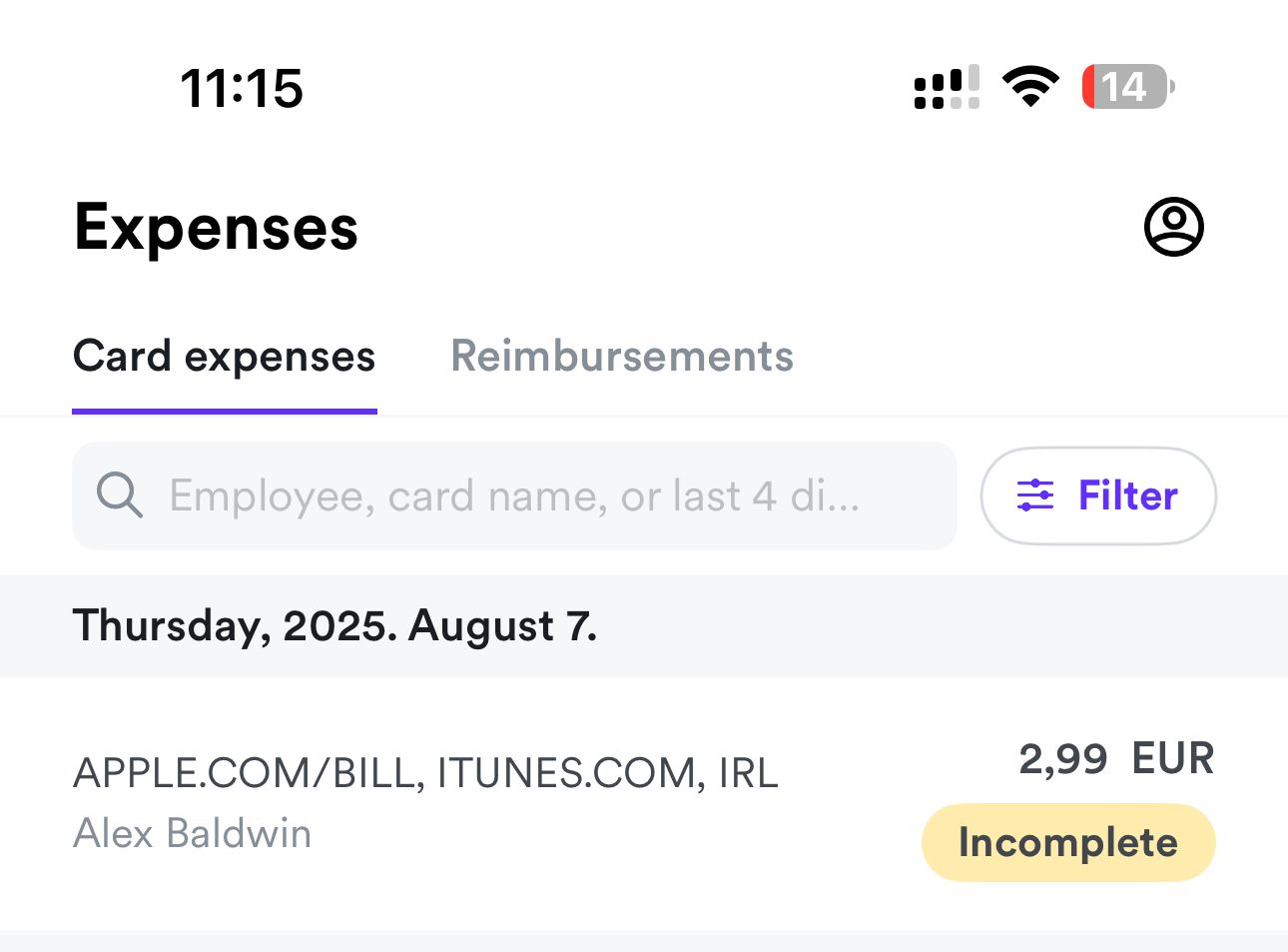
Please make sure the Description refers to a "Personal expense", the Expense Category is "0_PRIVATE EXPENSE ERROR" and the Accounting Label is "INT_General"