






Logging your time and uploading your fee invoice
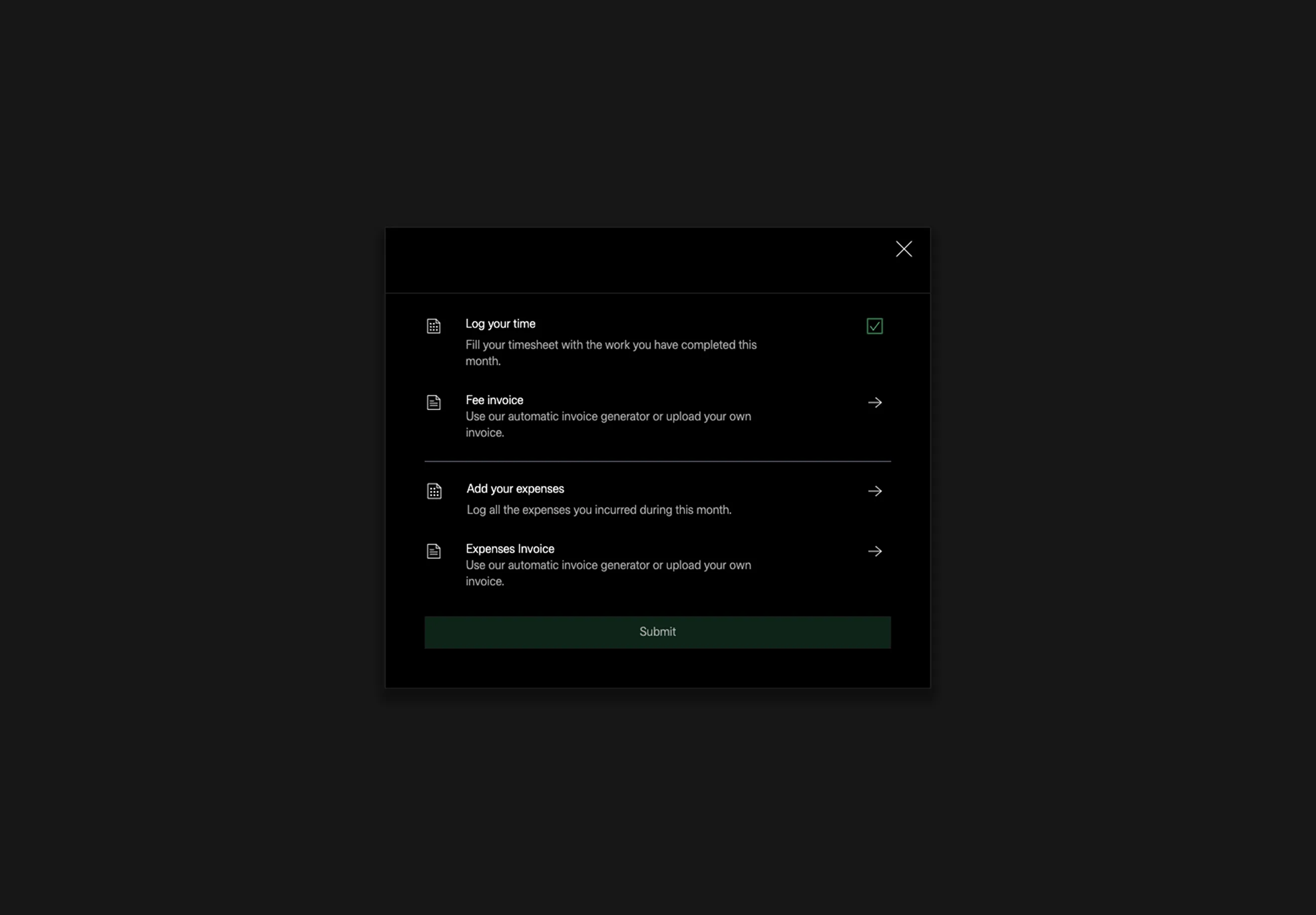
Before adding expenses, ensure you have logged your time and uploaded your fee invoice. To proceed, click the arrow next to 'Add Your Expenses' as shown in the image below.
Adding expenses
At the bottom left of the screen, click on the 'Add New Expense' button.
Entering expense details
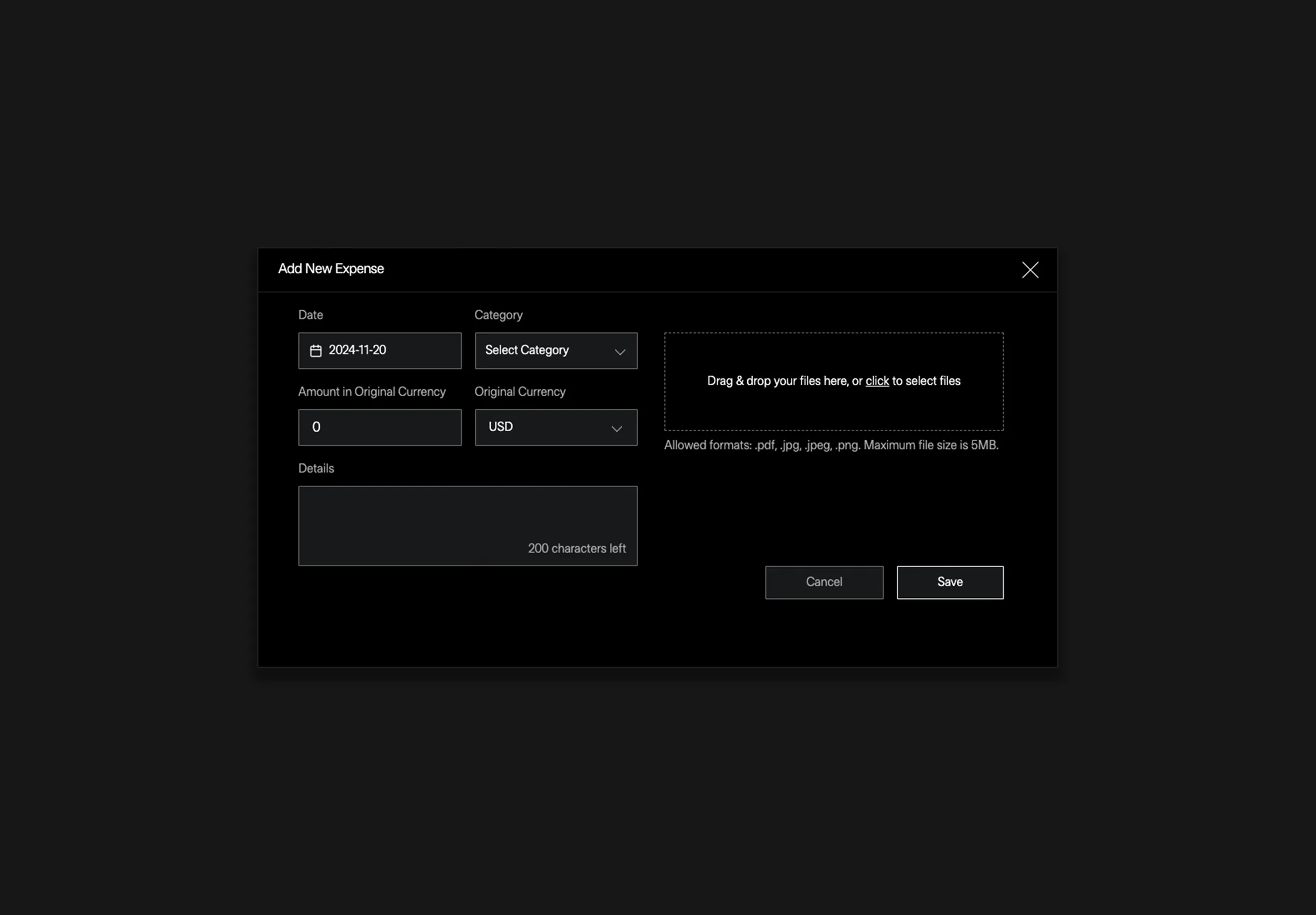
For each expense entry, fill in the required information as shown in the screenshot below.
- Description: Please provide sufficient detail in the description to clarify to what the expense pertains.
- Currency conversion: If the expense is in a currency other than USD, please enter the USD equivalent, allowing the system to calculate the exchange rate accurately.
Uploading supporting documents
Please provide relevant receipts, invoices, or other supporting documents by clicking the link on the right side of the screen or dragging the files into the designated area.
When done, click the 'Save' button at the bottom left to store the expense.
Generating an expense invoice
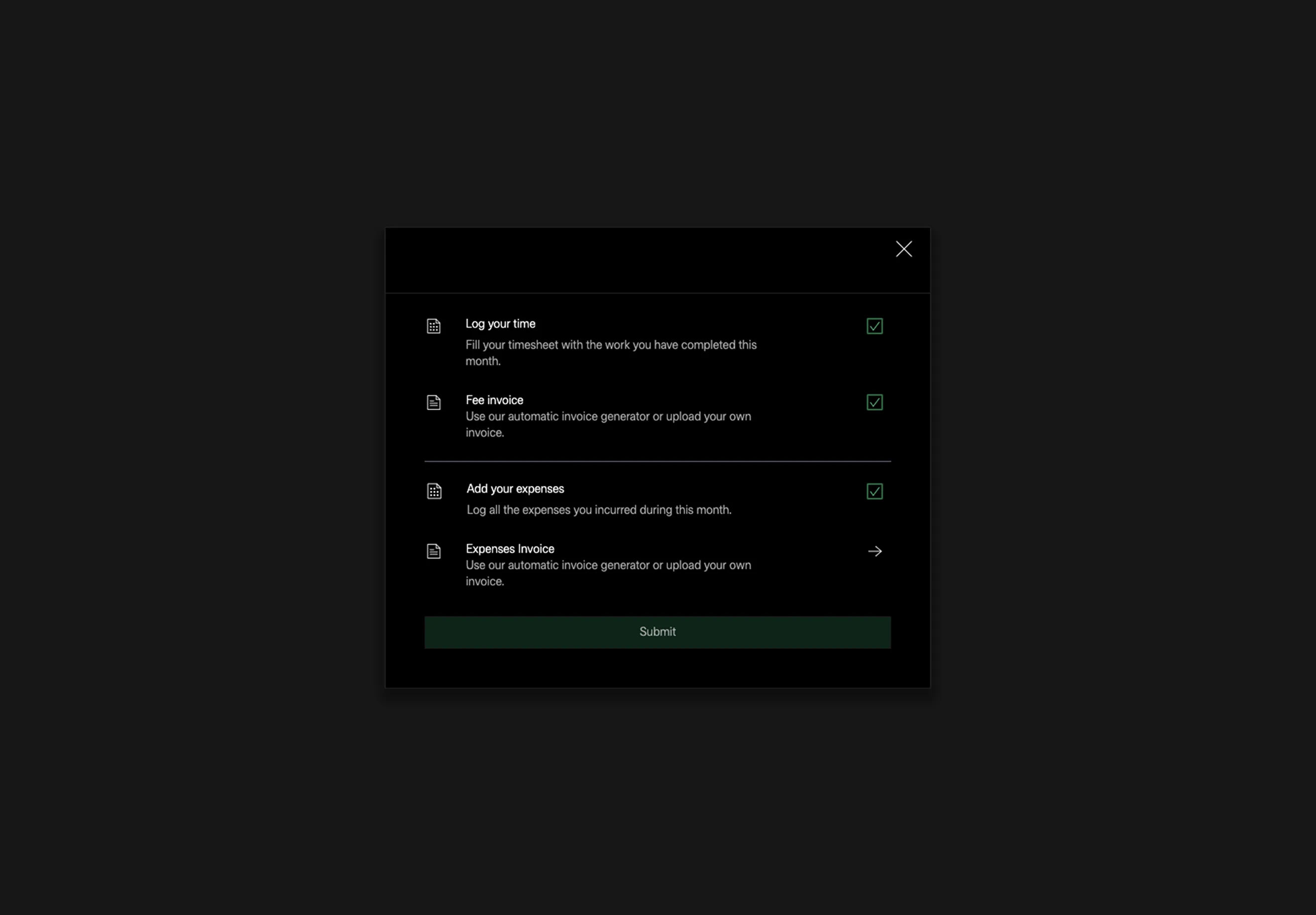
After adding all relevant expenses, click the arrow next to 'Expense Invoices' to generate your invoice. Follow the same rules as for your fee invoice.
Once this is completed, click the 'Submit' button to finalise the process.
Expense Invoice Templates
Please refer to the Hyphen Expense Invoice Templates below if needed.