






There are several steps that you must follow to receive a VCC, starting with registering for Airwallex. A member of our team will inform whether you have been approved for one of these cards and tell you how much and on what items you are permitted to use it.
Here is a step-by-step guide to take you through the procedure:
Install the Airwallex app on your phone.
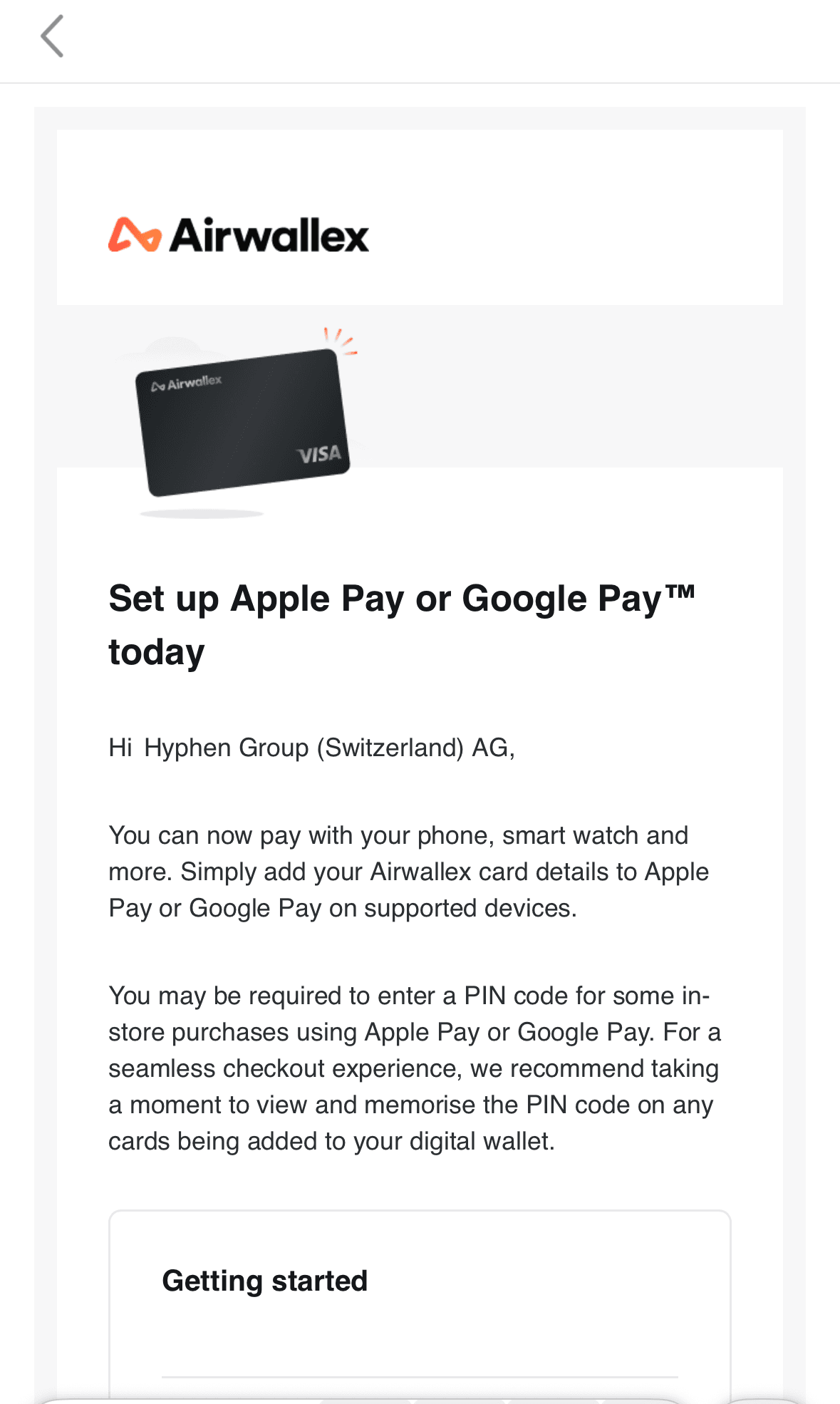
Once you have downloaded the app, please open the invitation email and use your hyphen.group email address to start registering your Airwallex account.
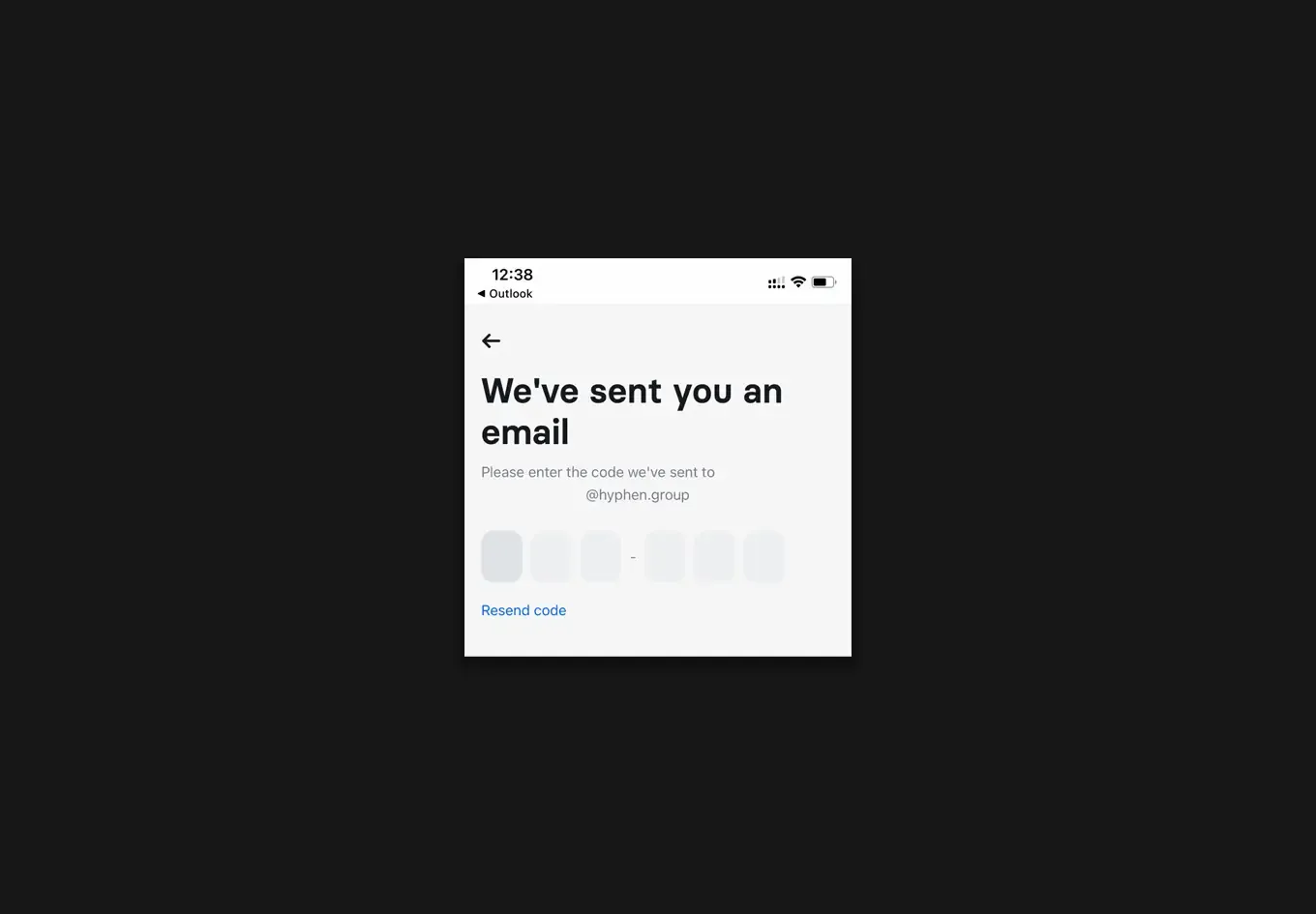
You will receive a six-digit code in your email. Please enter this in the Airwallex app.
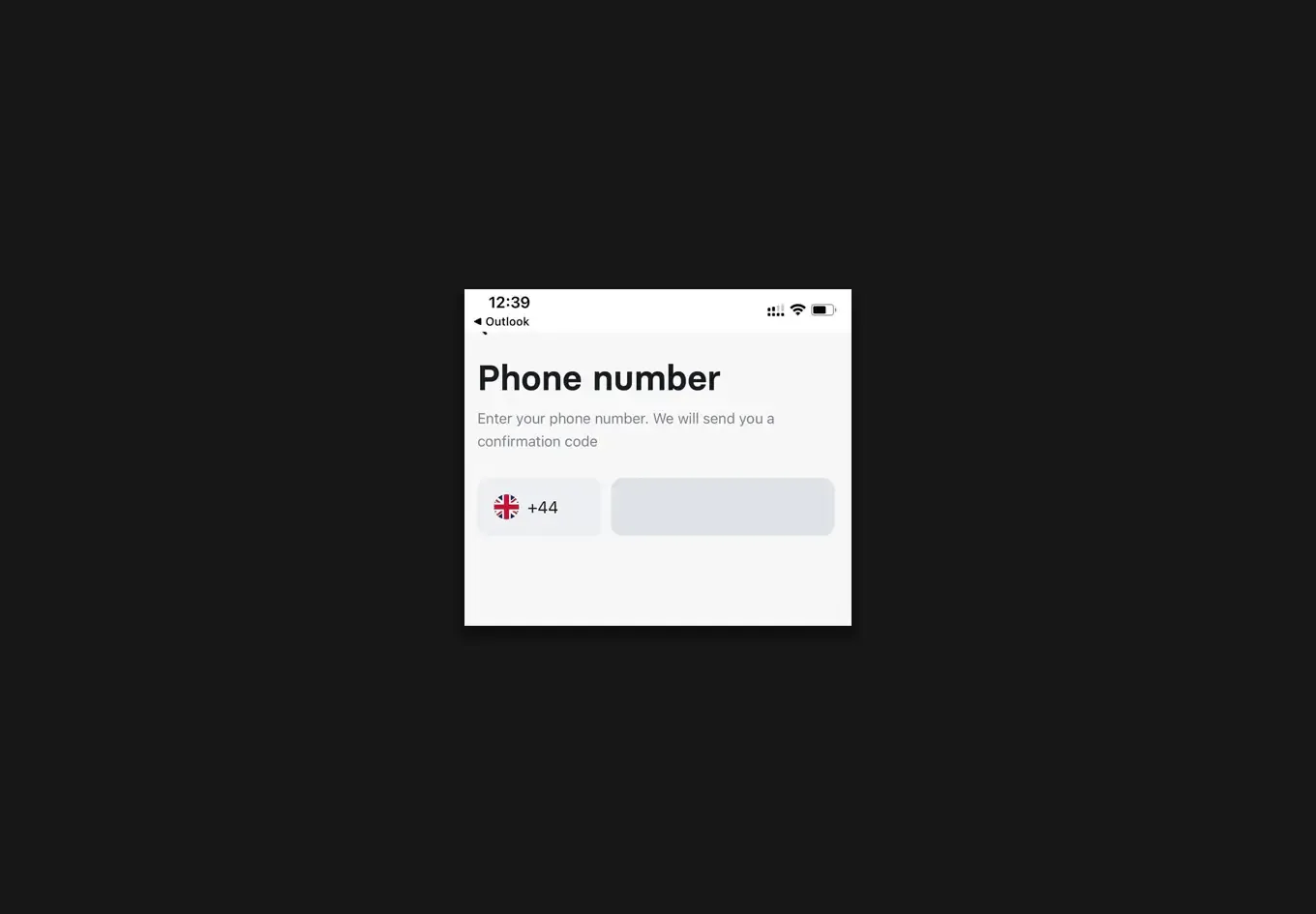
Please enter the phone number of the device that you will use with the VCC.
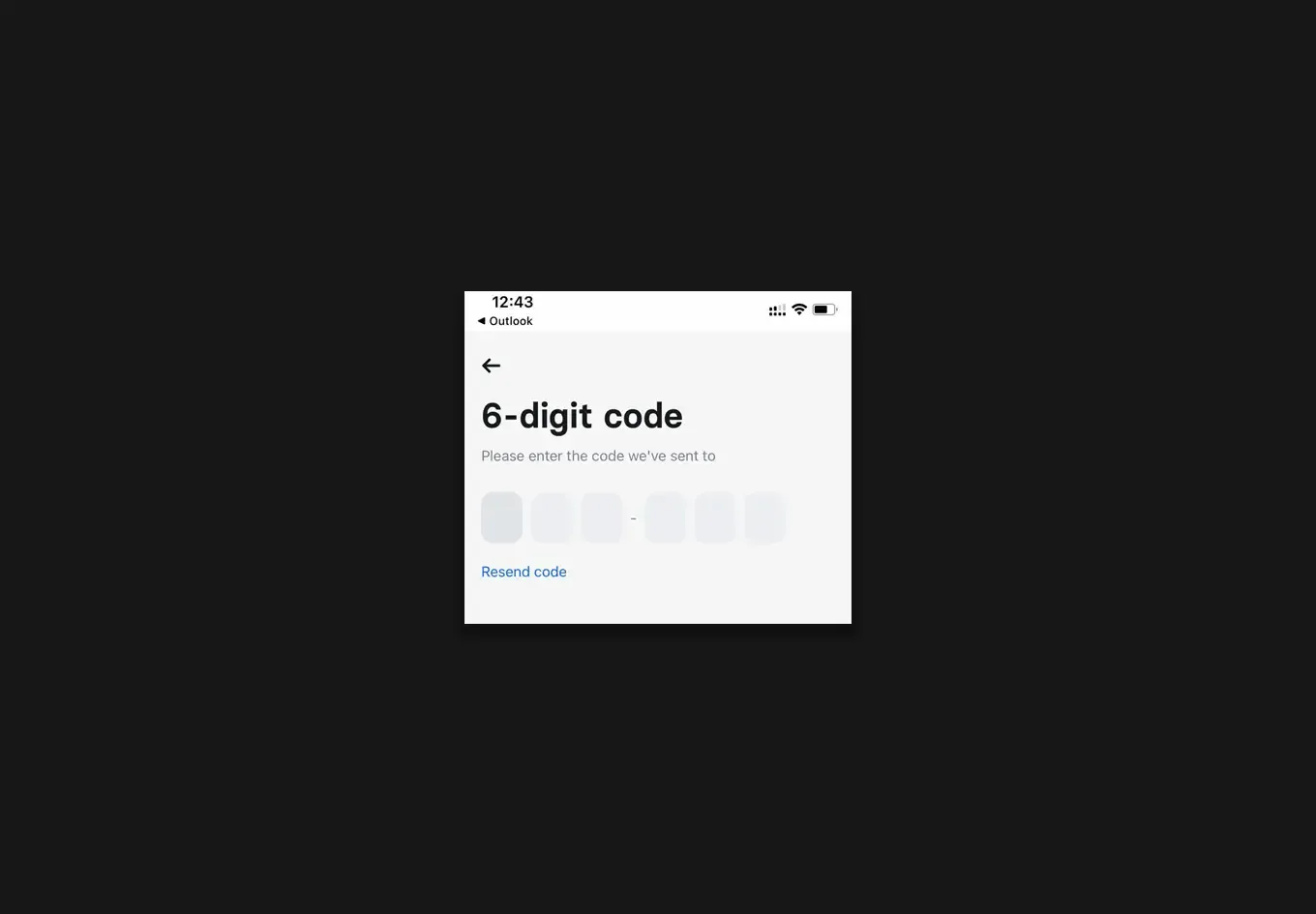
You will then receive a second six-digit code to your mobile number to link the Revolut Business account to your phone.
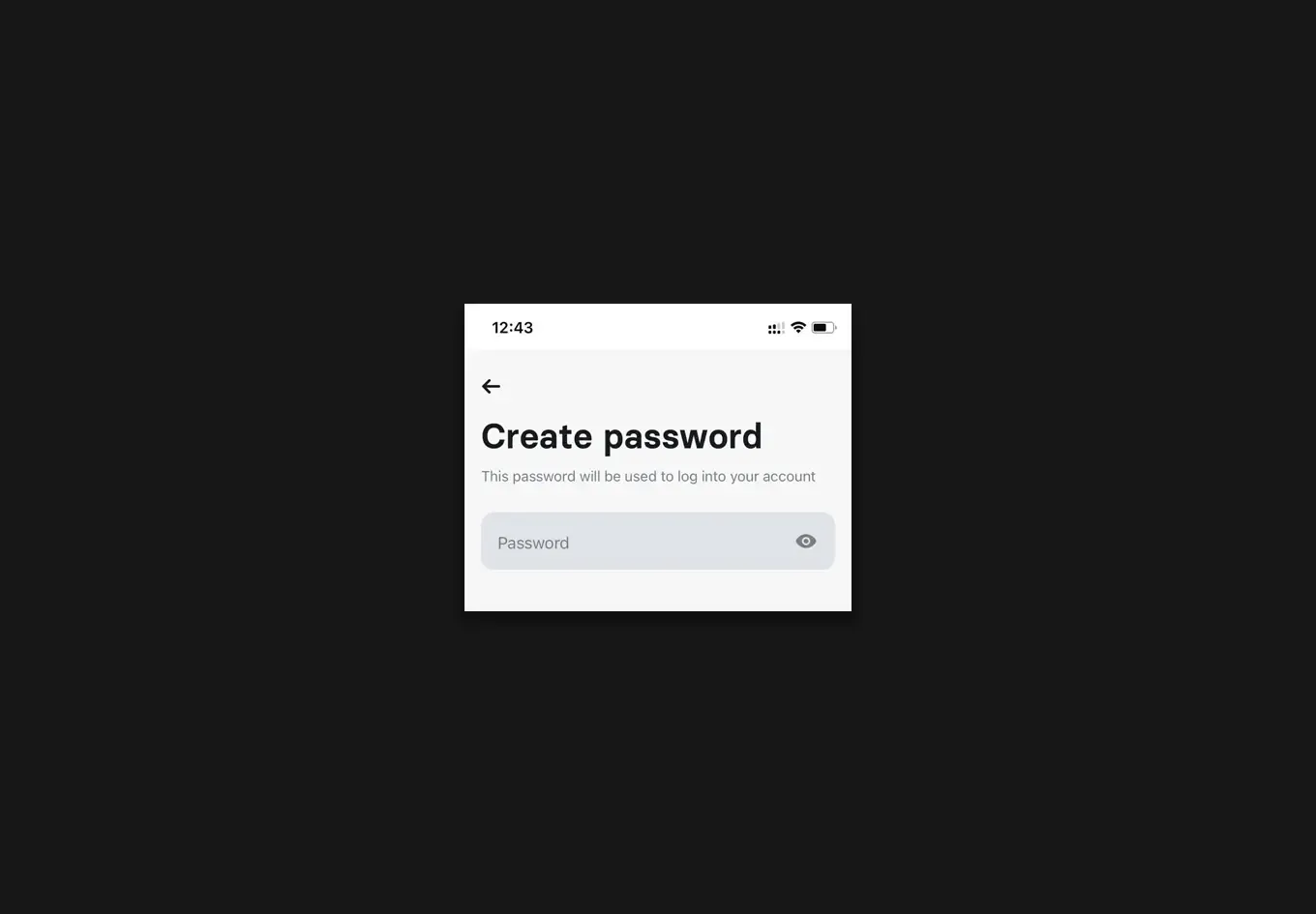
The app will then ask you to create a password for your Revolut Business account. Please do not use the same password as you use for your Hyphen email account.
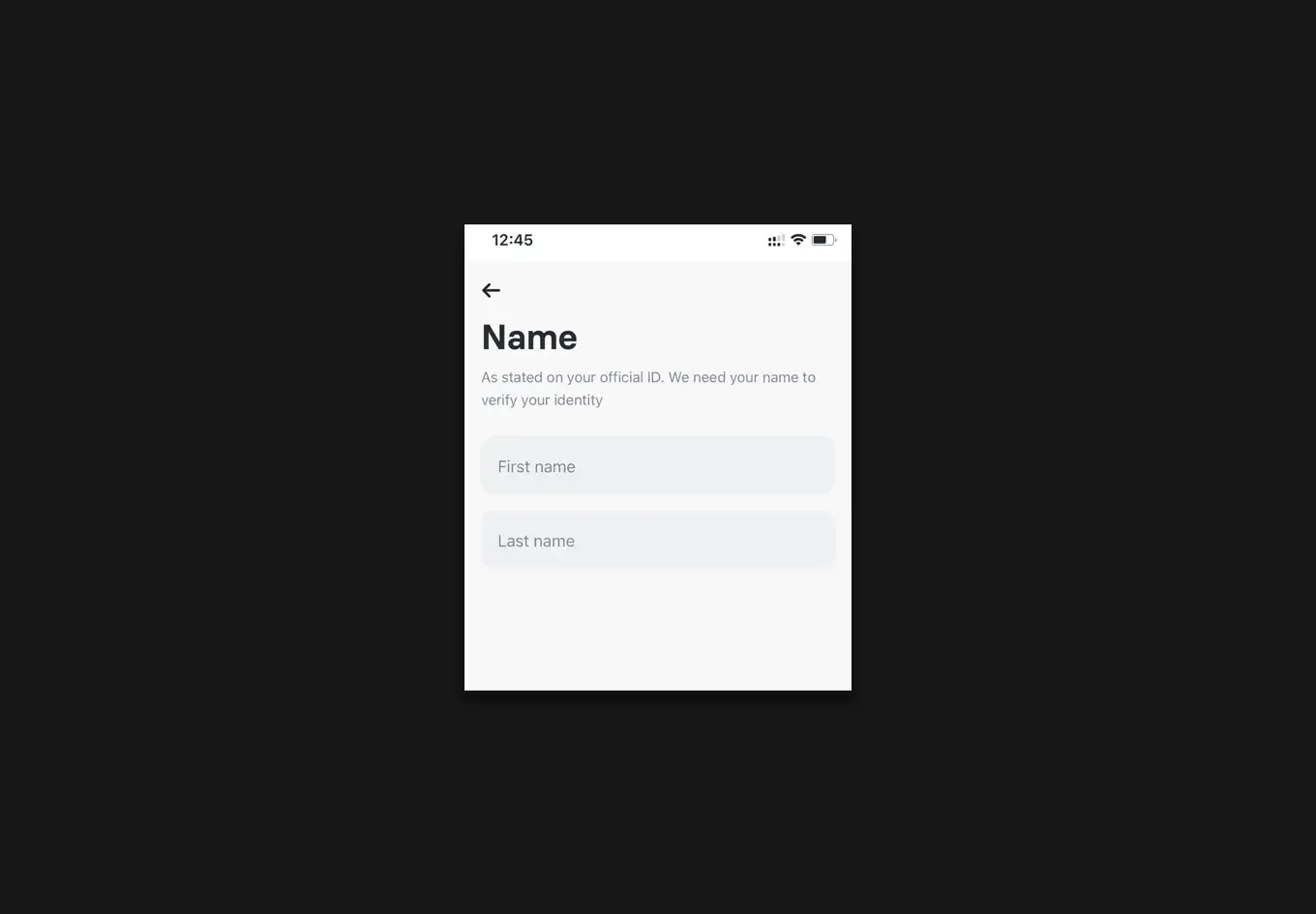
Enter your name exactly as it appears on your ID.
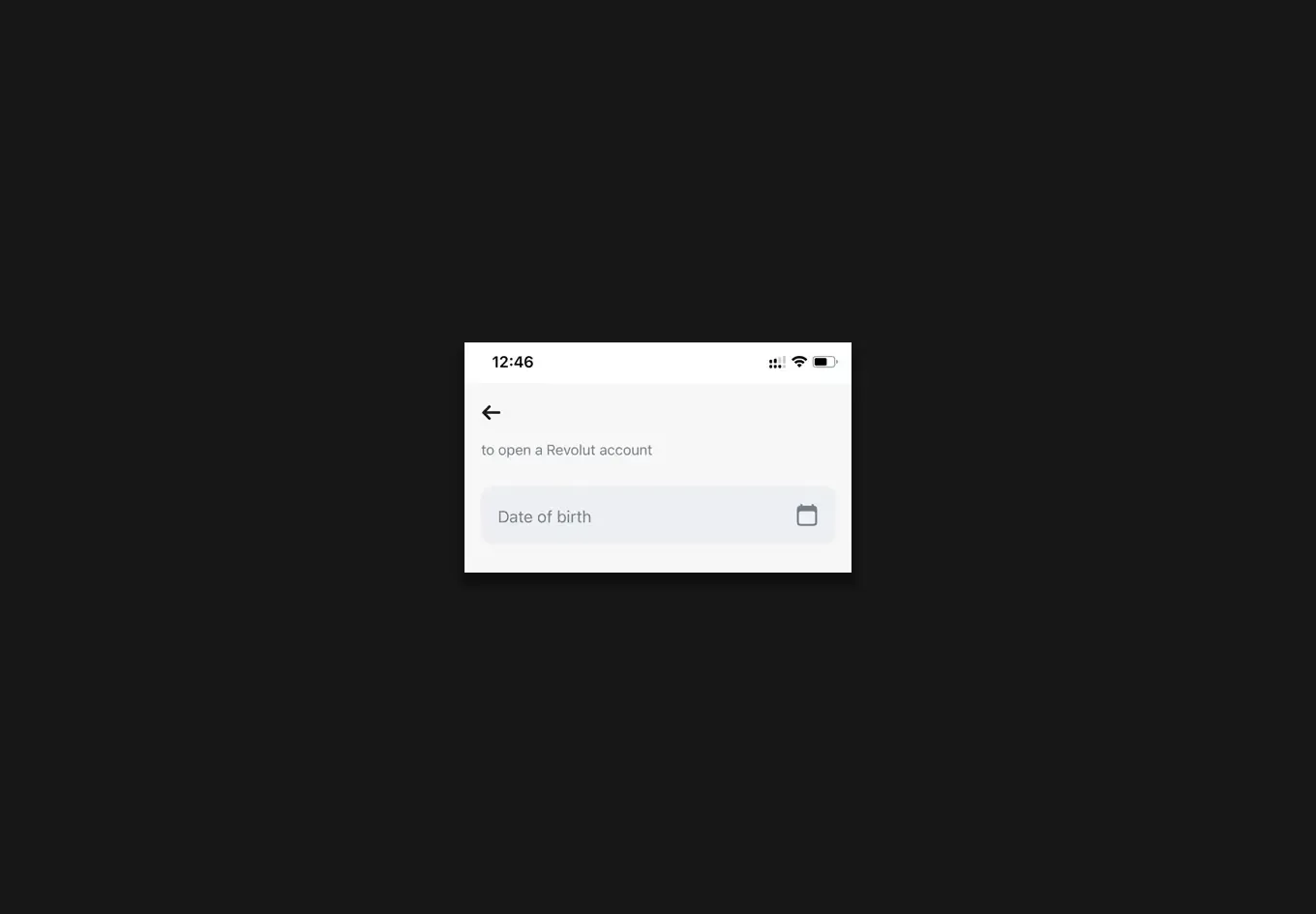
Enter your date of birth as it appears on your official ID.
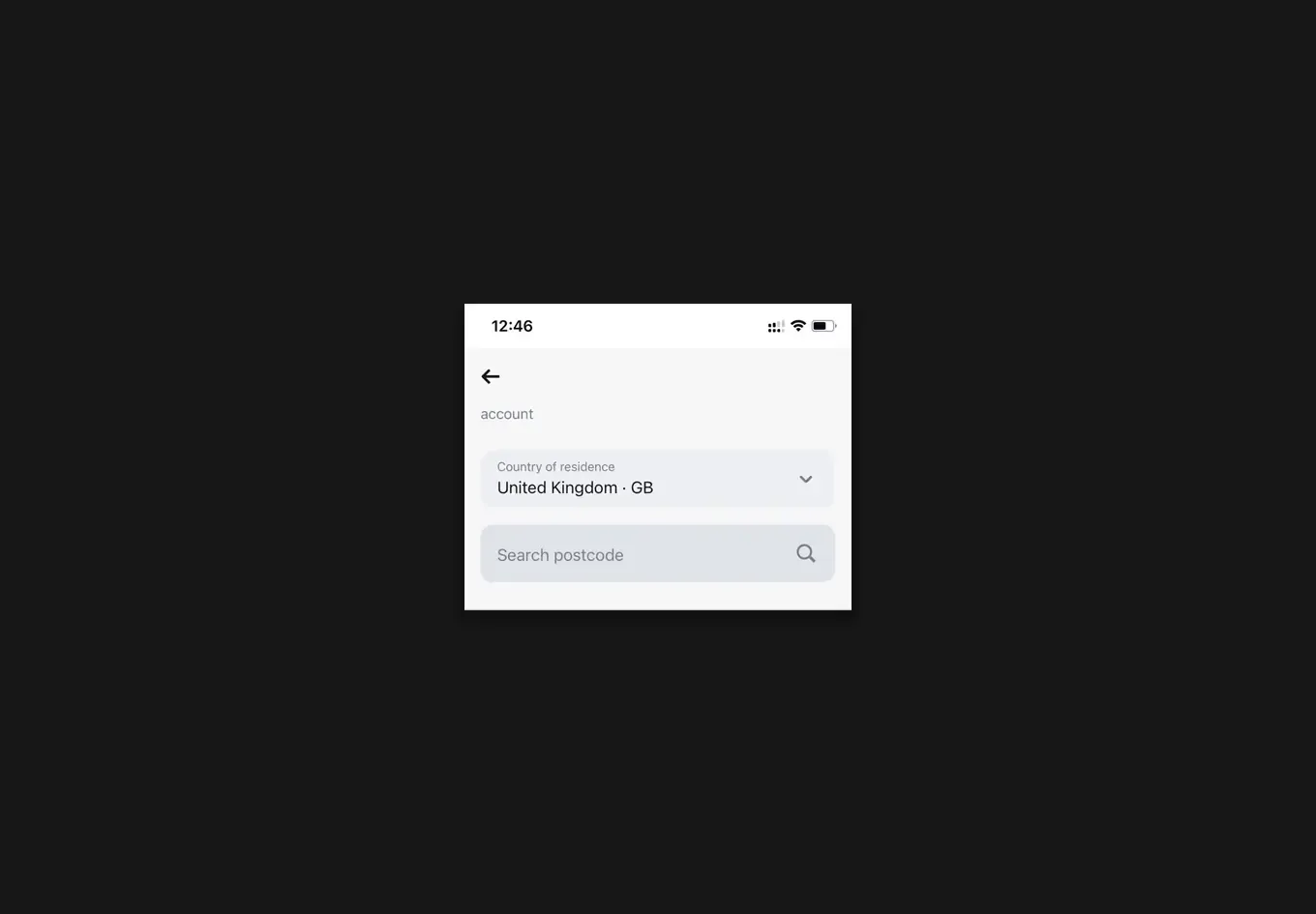
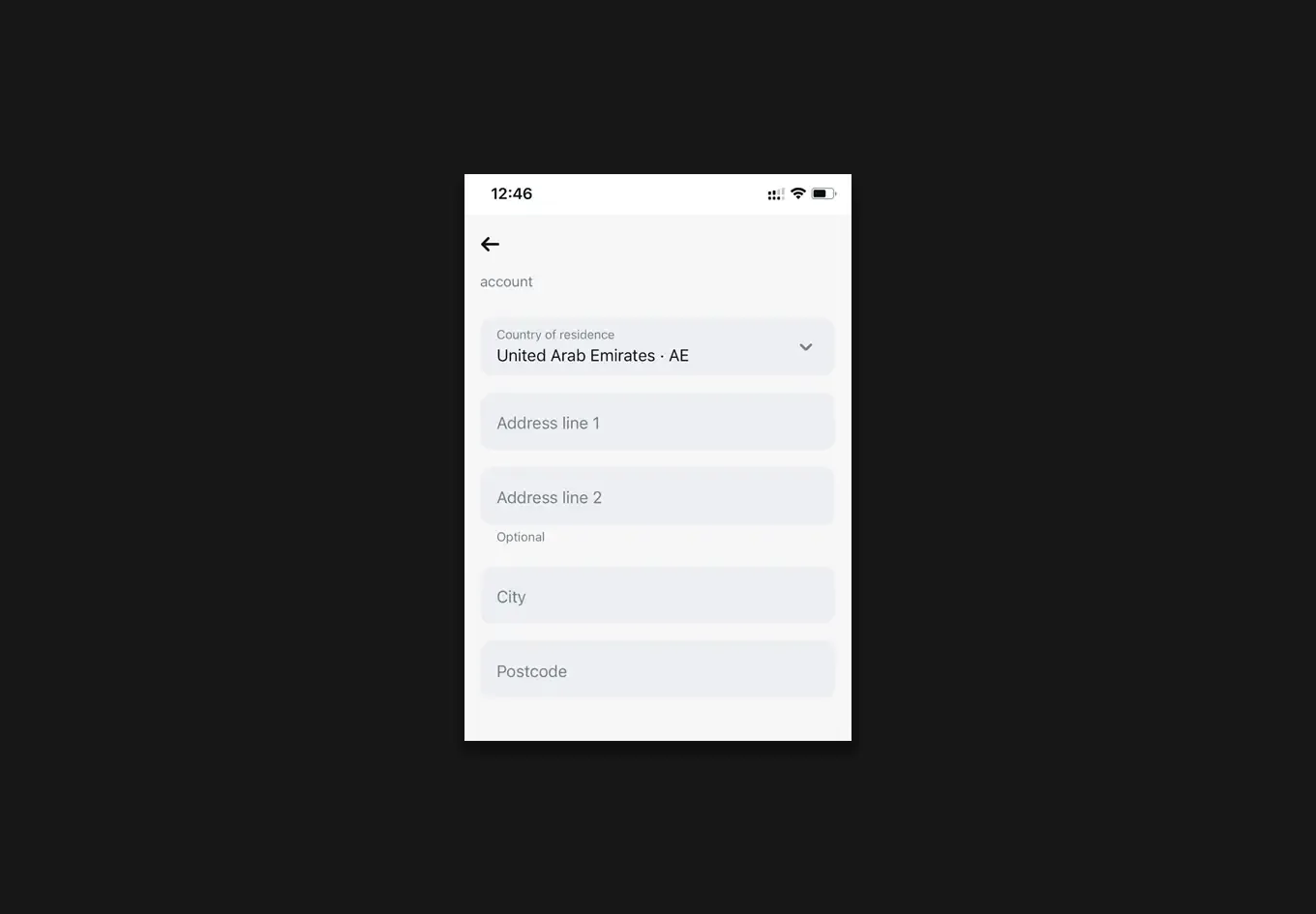
Select your country of residence and then enter your home address. In some cases, you can auto-fill the address from your postcode/zip code, or else you may have to manually enter it.
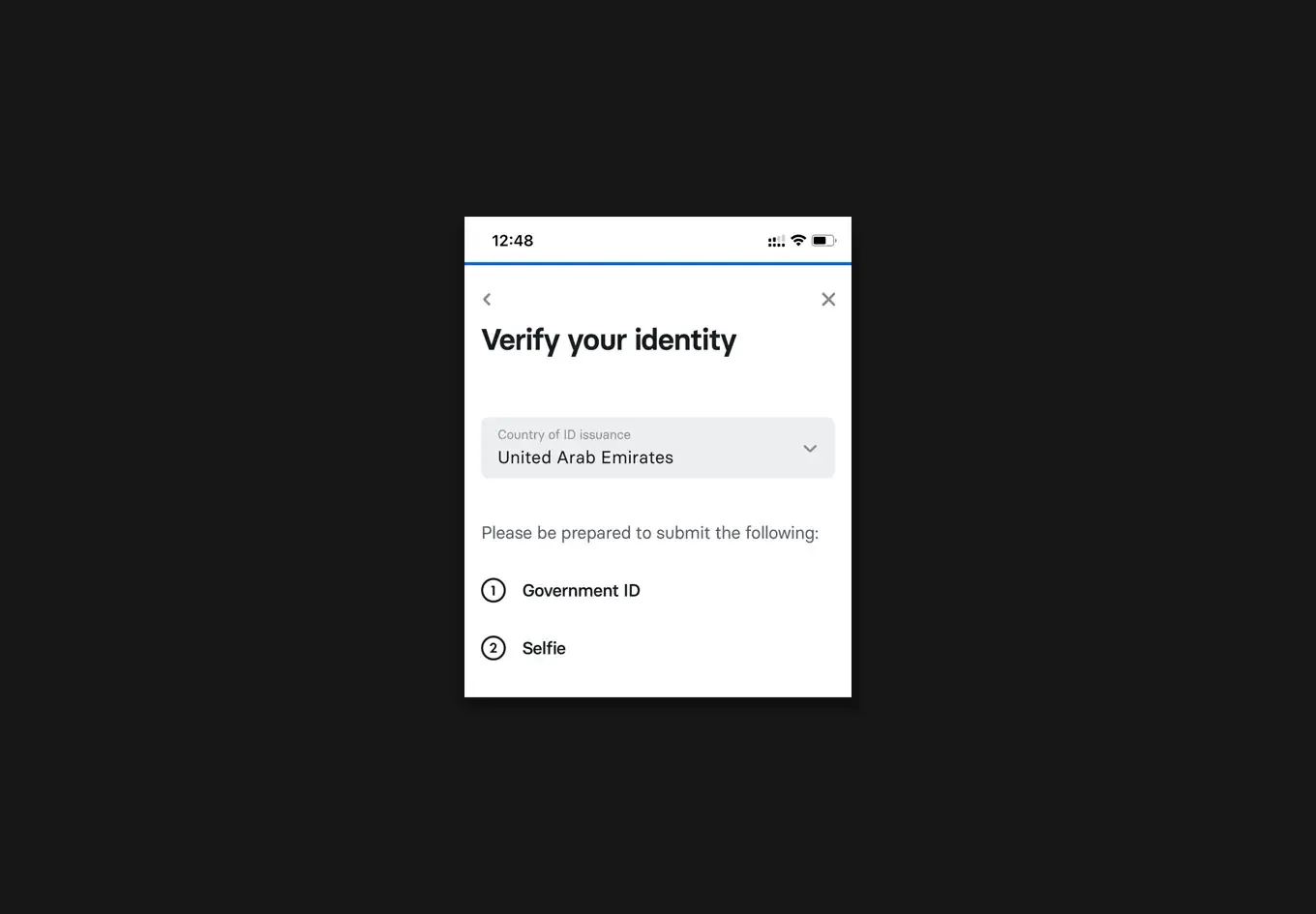
You will need a piece of government-issued identification to verify your ID, in line with global financial regulations. An example of this could be a passport, driving licence or national identity card.

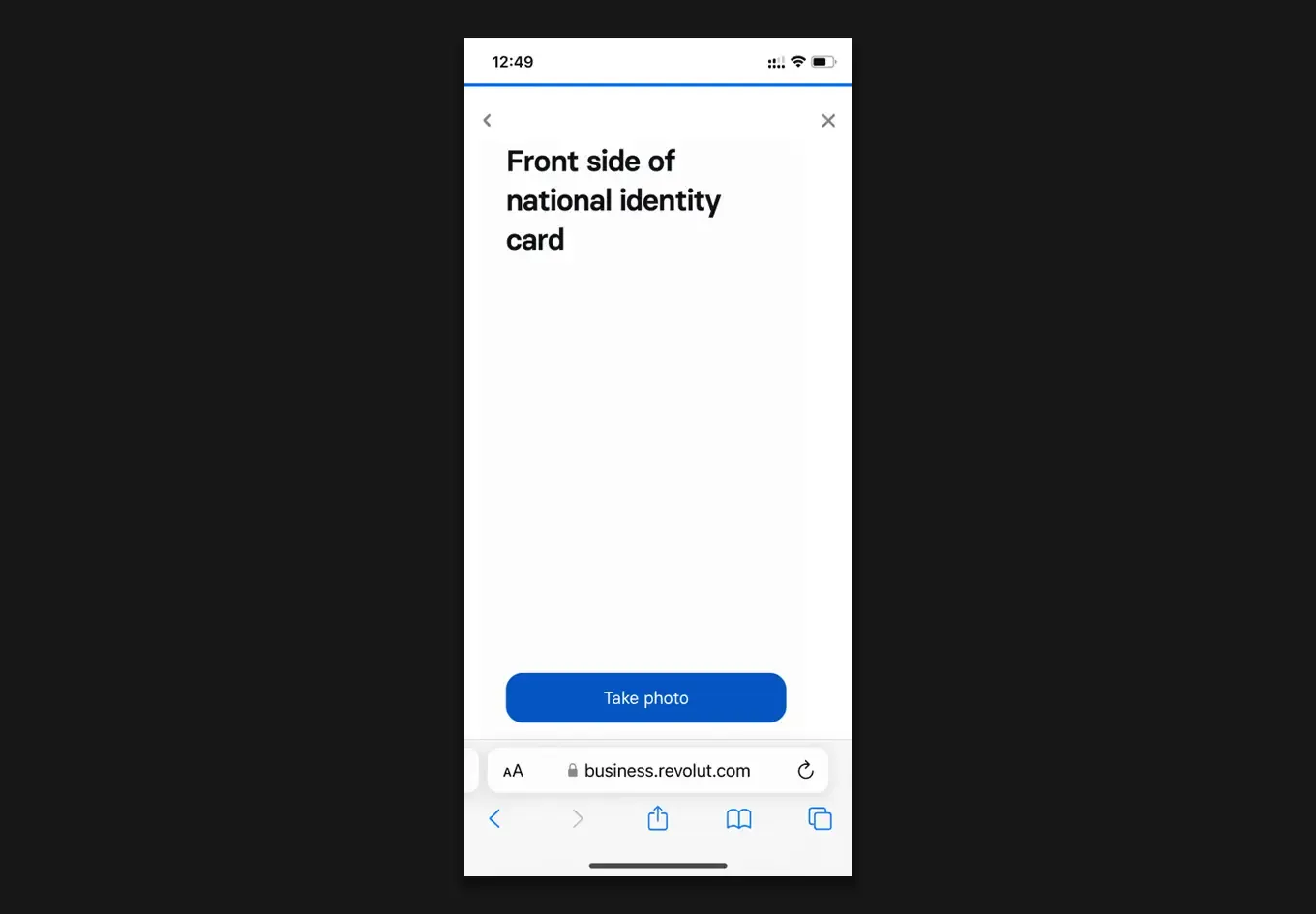
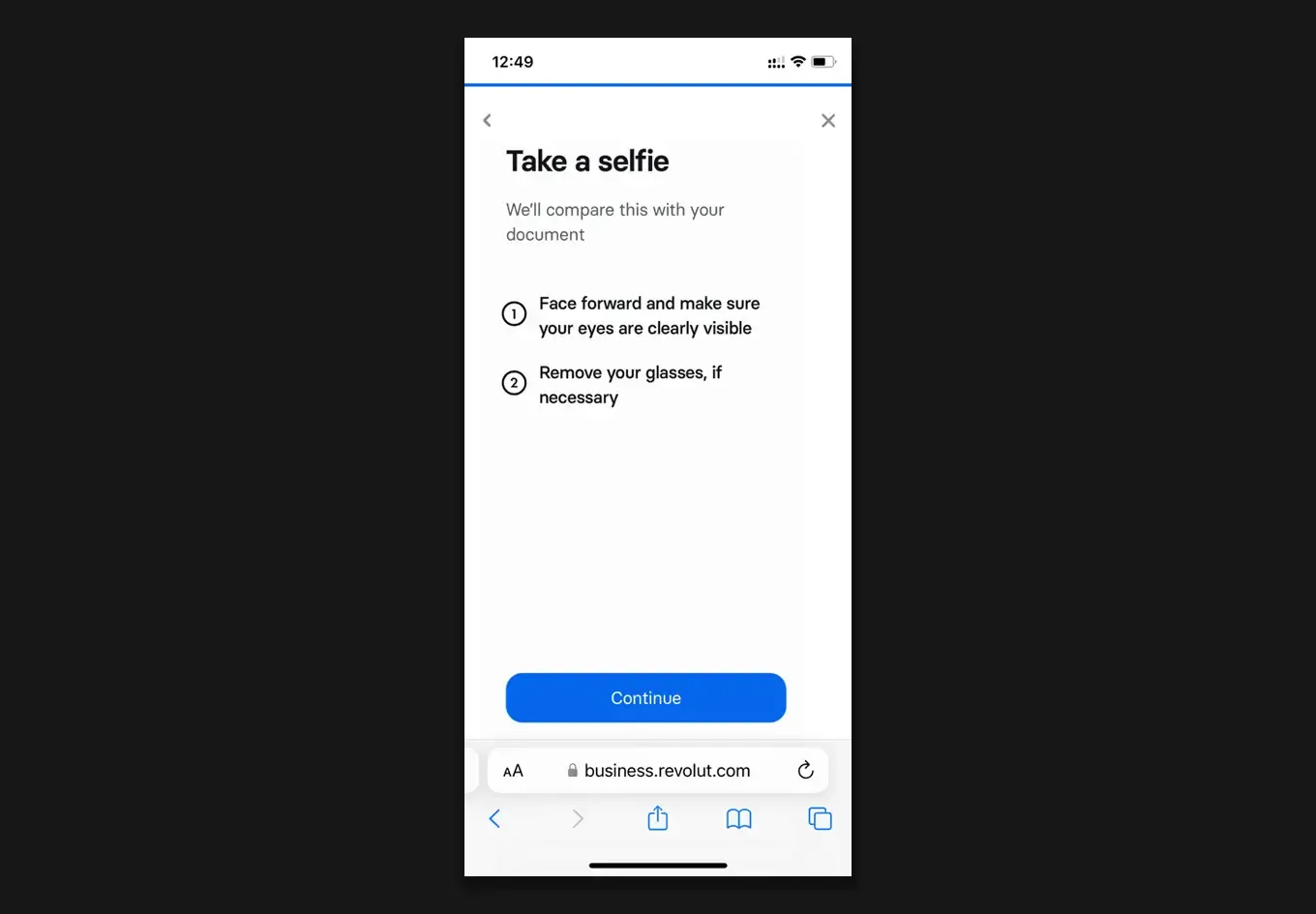
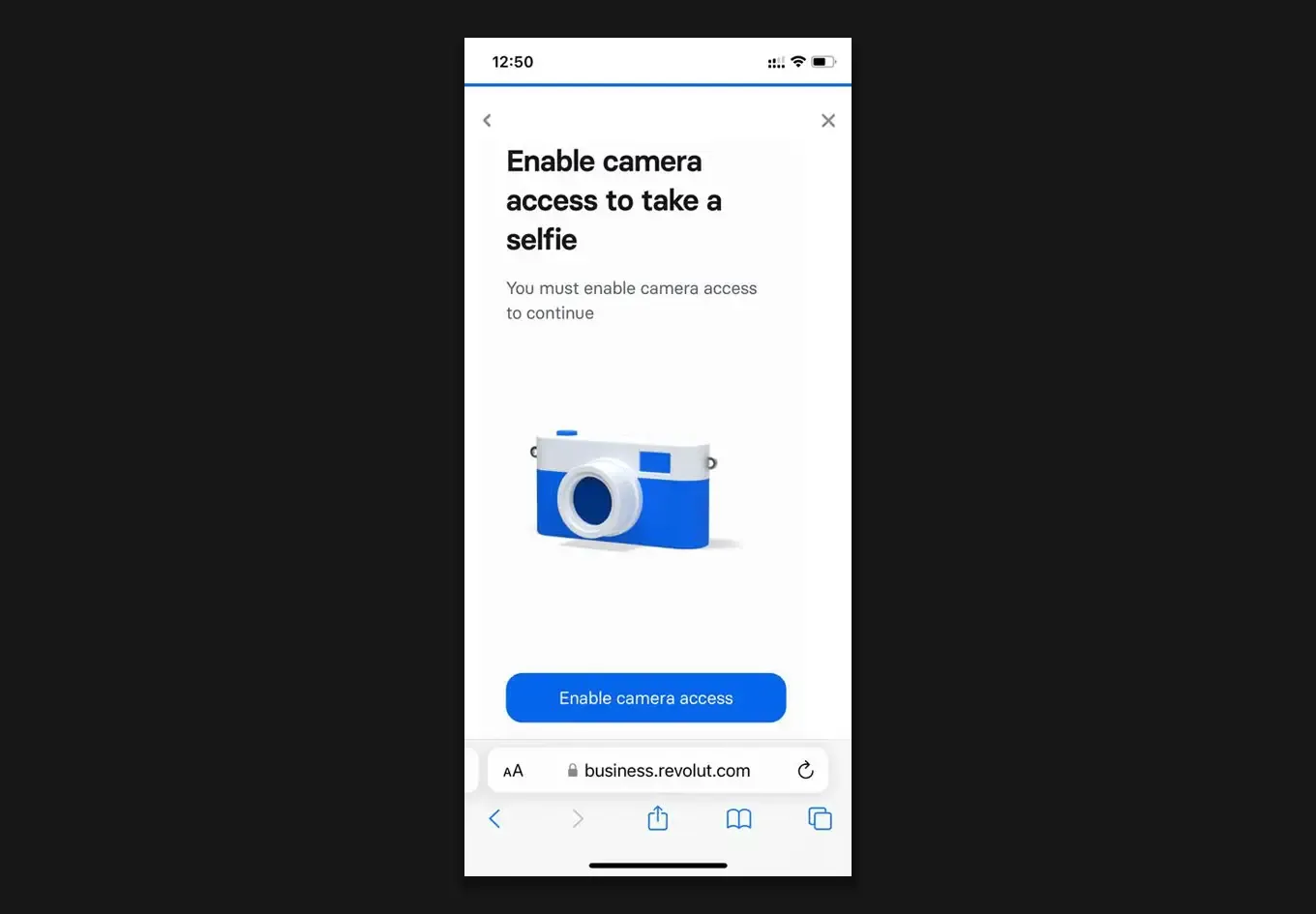
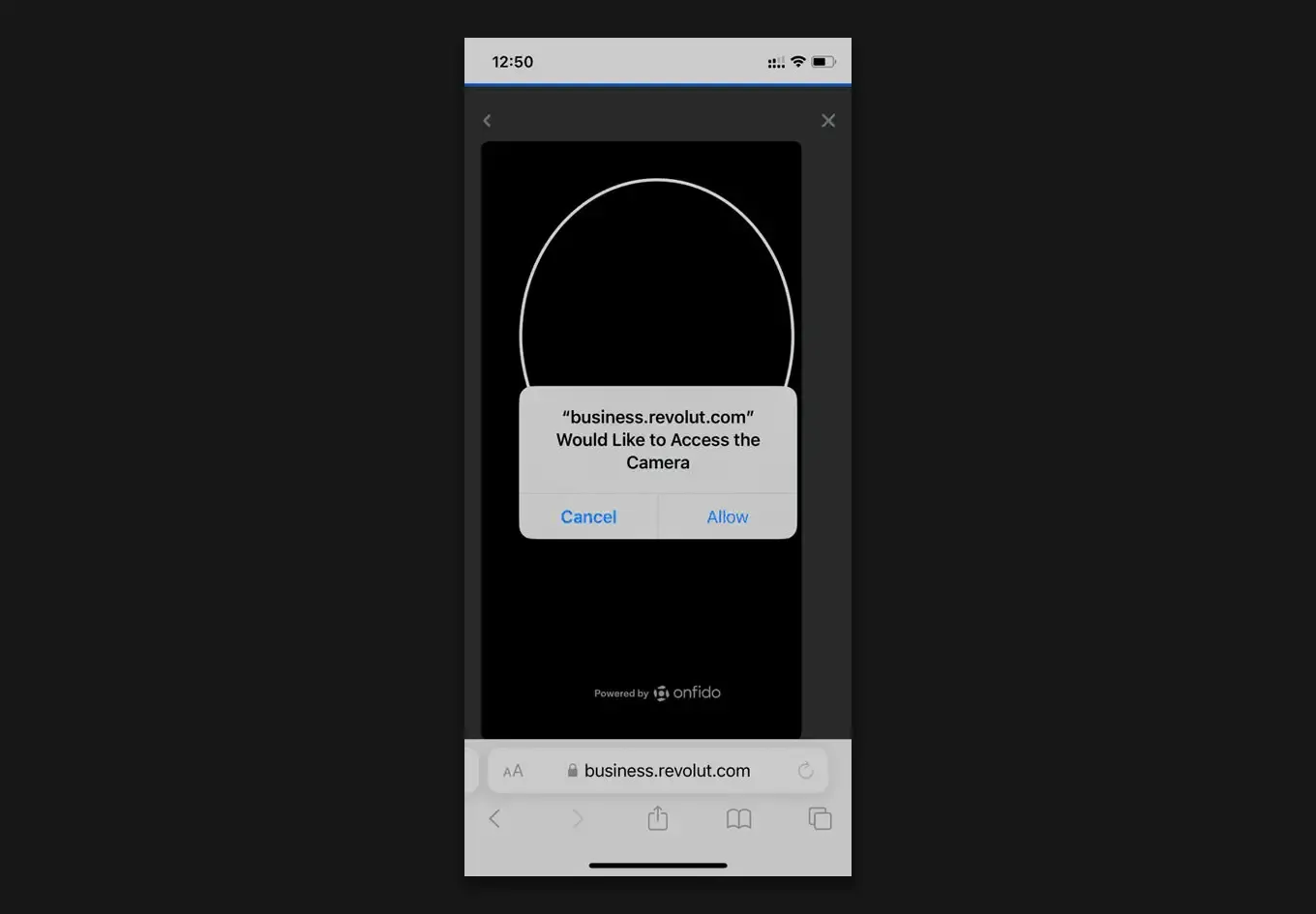
Take a clear photo of the front of your ID, the side with your photograph on it. You will then be asked to take a selfie to confirm that you match your ID. You may have to enable camera access to do this - if the permission box appears as below, please select “Allow” and take a picture.
Congratulations - you have now successfully registered your Revolut Business account!